
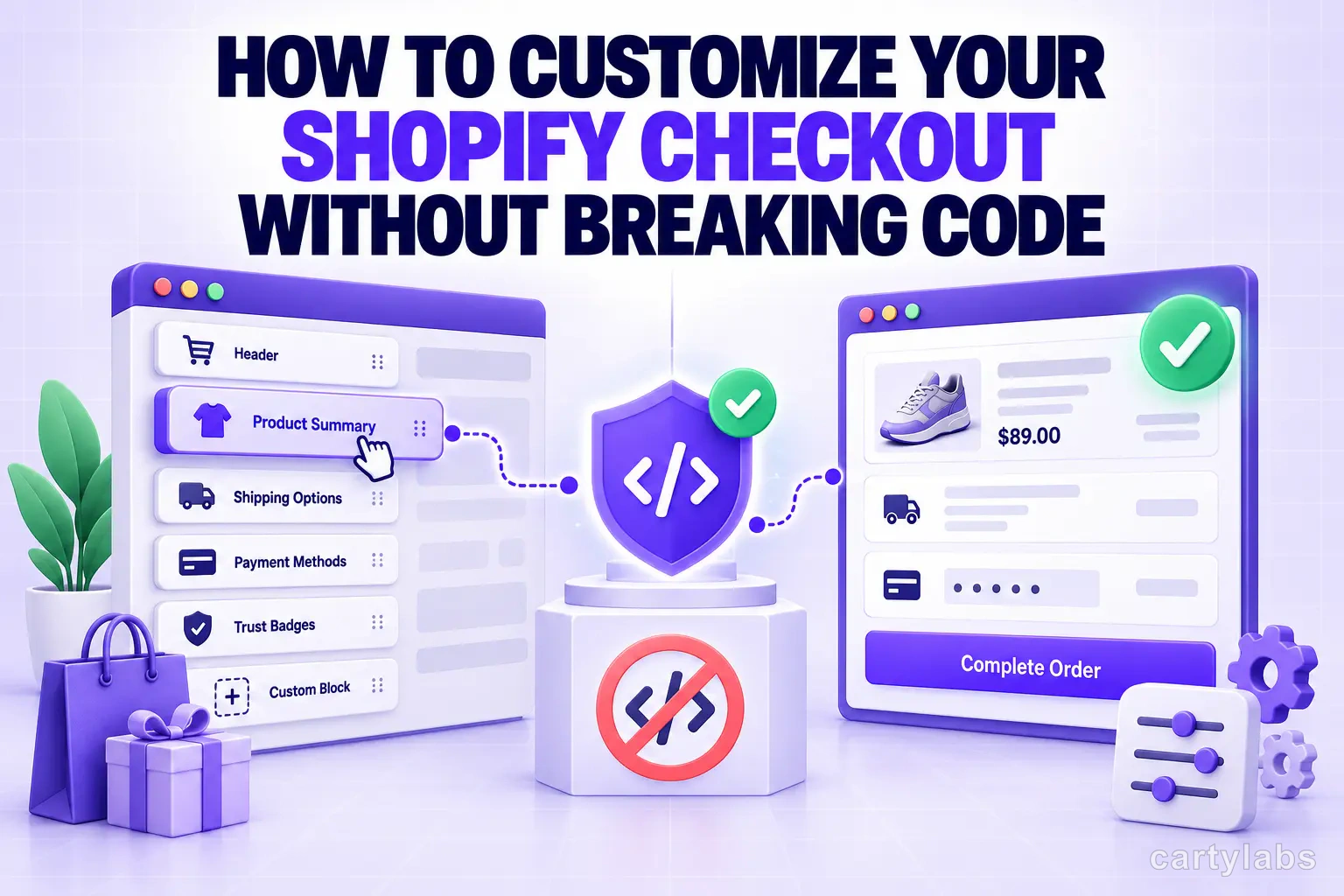
How to Customize Your Shopify Checkout Without Breaking Code
Customize Shopify checkout safely using the Editor, Branding API, and no-code Checkout UI Extension apps. A merchant-friendly guide to changing every visible element without touching liquid.
In this article
- 01 What “no code” actually means on Shopify checkout#
- 02 What you can change with the Checkout Editor#
- 03 What you can change with Branding settings#
- 04 What you can add with no-code Checkout UI Extension apps#
- 05 Where the no-code ceiling is#
- 06 A safe customization workflow#
- 07 What to customize first#
Shopify checkout used to require a developer for any meaningful change. That has been over for two years and most merchants still do not realize it. Between the visual Checkout Editor, the Branding API, and the explosion of no-code Checkout UI Extension apps, almost every change you would have paid a developer for in 2023 is now a drag-and-drop operation.
This guide walks through exactly what you can customize without code, and where the actual ceiling is in 2026.
For the deeper technical model that explains why the no-code surface area is so much wider than it used to be, see the Shopify checkout extensibility explained post.
What “no code” actually means on Shopify checkout
No-code on Shopify checkout breaks into three layers:
- The Checkout and Accounts editor (visual drag-and-drop)
- Branding settings (colors, fonts, button styles, layout)
- App-installed Checkout UI Extensions (each app exposes its own toggles)
You can do a remarkable amount with these three layers alone. The ceiling kicks in only when you need custom server-side logic, which requires Plus and a developer.
What you can change with the Checkout Editor
The visual editor (Settings > Checkout > Customize) lets you:
- Reorder existing sections
- Show or hide optional fields (company name, address line two, phone)
- Add or remove pre-built blocks (custom banners, upsell rows, trust signals, etc.)
- Configure express checkout button placement
- Toggle one-page vs. three-page format
Everything in this list is a click. None of it requires touching liquid.
What you can change with Branding settings
The Branding API exposes:
- Brand color palette (primary, secondary, accent)
- Custom fonts (upload or use system)
- Button shape (radius, fill style)
- Form field style (outlined, filled, underlined)
- Header layout (logo position, size)
- Background and surface colors
This is where most stores leave the most conversion on the table. The default unbranded Shopify checkout actively suppresses conversion on premium products because the visual change at checkout signals you are not who you said you were.
What you can add with no-code Checkout UI Extension apps
This is the part that changed everything. App-installed extensions plug into specific checkout surfaces (above the order summary, below the email field, on the Thank You page) and ship their own UI without you writing any code.
The categories of no-code extension apps:
- In-checkout upsells and cross-sells (see our Shopify checkout upsell apps roundup)
- Trust badges, security icons, and shipping reassurance (trust badge apps)
- Loyalty balance and points-redemption widgets
- Custom delivery instructions and gift messaging
- Subscription and “subscribe and save” toggles
- Charity round-up offers
- Post-purchase upsell modules
- Survey and attribution widgets
A standard Shopify store today can install five to ten extension apps and have a checkout that looks and behaves like a custom build, with no developer involvement.
Where the no-code ceiling is
The honest answer: you cannot do server-side logic without code. Specifically:
- Custom validation rules (block PO boxes, require phone for high AOV) require a Shopify Function
- Dynamic pricing based on customer cohort requires a discount function
- Country-specific payment method ordering requires Shopify Plus
- Branded UI on the Thank You page that pulls live data needs an extension or developer
For most merchants on a standard plan, none of these block ninety percent of what they want to do.
A safe customization workflow
The biggest risk in no-code customization is shipping a change that breaks your conversion rate silently. The workflow that prevents this:
- Note your current checkout completion rate
- Make one change at a time
- Hold for seven to fourteen days
- Compare completion rate
- Keep or revert
If you stack five changes at once, you will not know which one caused the conversion drop (or lift).
What to customize first
Start with the highest-leverage, lowest-effort changes:
- Set brand color, font, and button style (one hour)
- Add express checkout buttons above the email field (a few clicks)
- Install a trust badge extension and a shipping-reassurance extension
- Add a free shipping threshold message to the cart drawer
- Configure the Thank You page with a post-purchase upsell
This sequence delivers the bulk of the conversion lift available from no-code customization. Anything beyond it has diminishing returns relative to the time invested.
For the cart, in-cart upsells, free-gift progress, and post-purchase upsells in a single no-code app, Cartylabs covers the highest-leverage customizations across cart, checkout, and Thank You page without touching liquid.
Next steps
Related Shopify resources
Practical tools and product pages related to this guide.
Keep reading
All articles →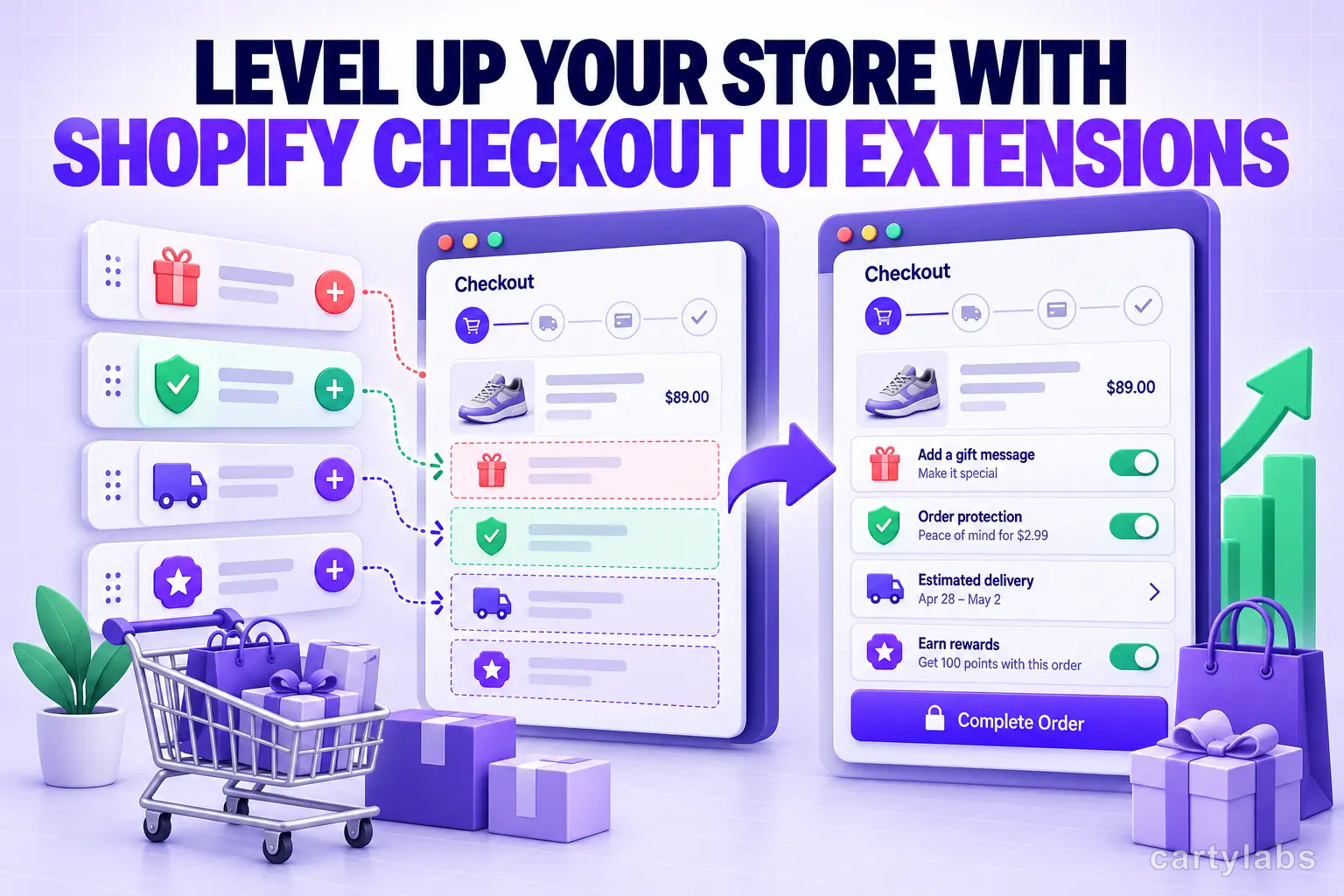
Level Up Your Store With Shopify Checkout UI Extensions
Use Shopify Checkout UI Extensions to add upsells, loyalty widgets, custom fields, and trust elements without rebuilding checkout. The complete merchant guide to extension surfaces and the apps worth installing.

How to Integrate Loyalty Rewards Directly Into Shopify Checkout
Surface Shopify loyalty rewards inside checkout with UI extensions, points balance widgets, and redemption flows that lift returning-buyer conversion four to nine percent on stores with mature programs.
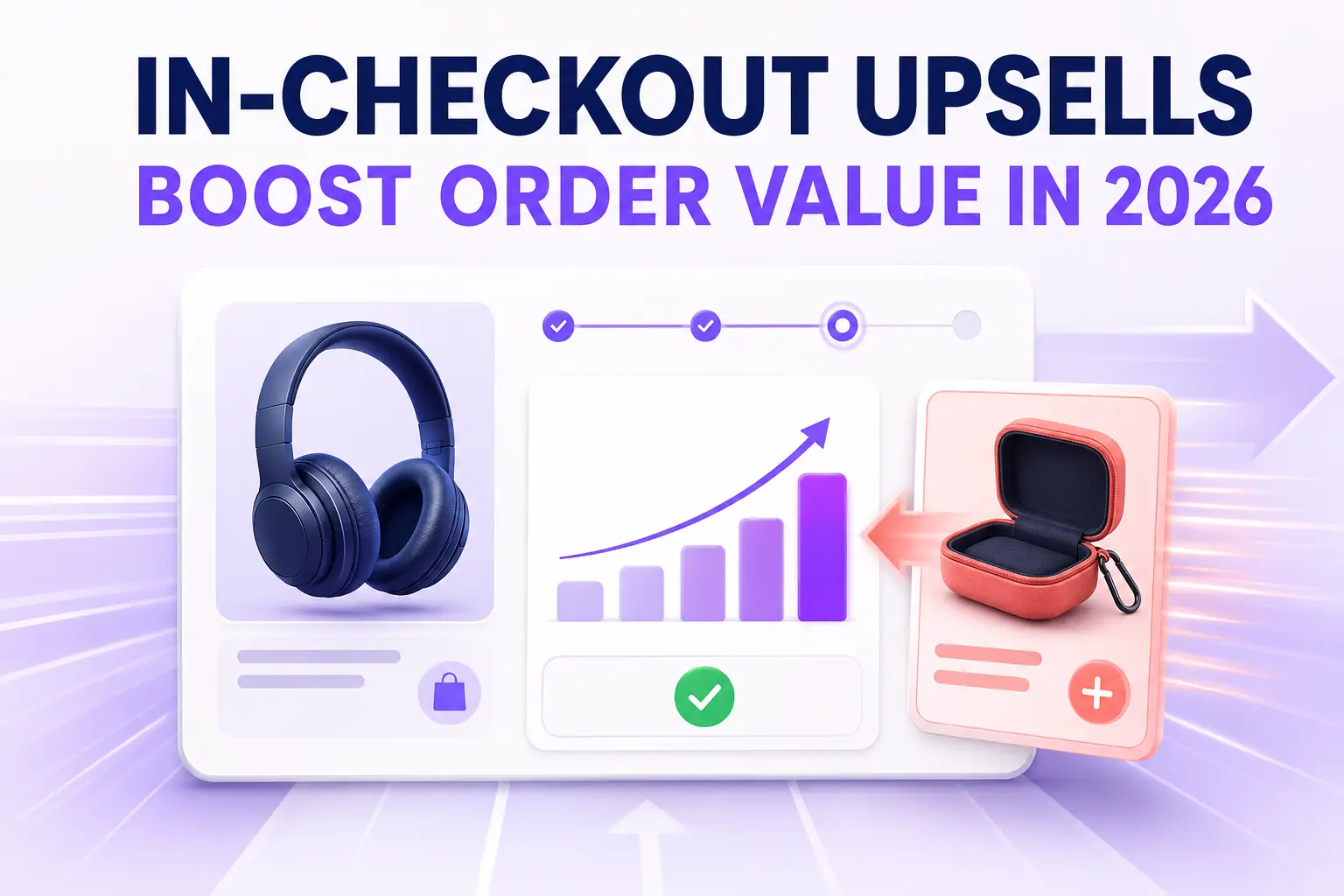
In-Checkout Upsells: How to Boost Shopify Order Value in 2026
Add in-checkout upsells on Shopify that lift AOV without dragging conversion. Offer construction, placement, targeting, and the apps that ship the highest-converting in-checkout modules in 2026.
 Install Cart — Free