
Shopify Sidekick Can Tune Your Cart Drawer, But It Won't Publish for You
Shopify Sidekick can suggest changes to supported Cartylabs cart settings, but you review and save them. See what it can tune and where it stops.
In this article
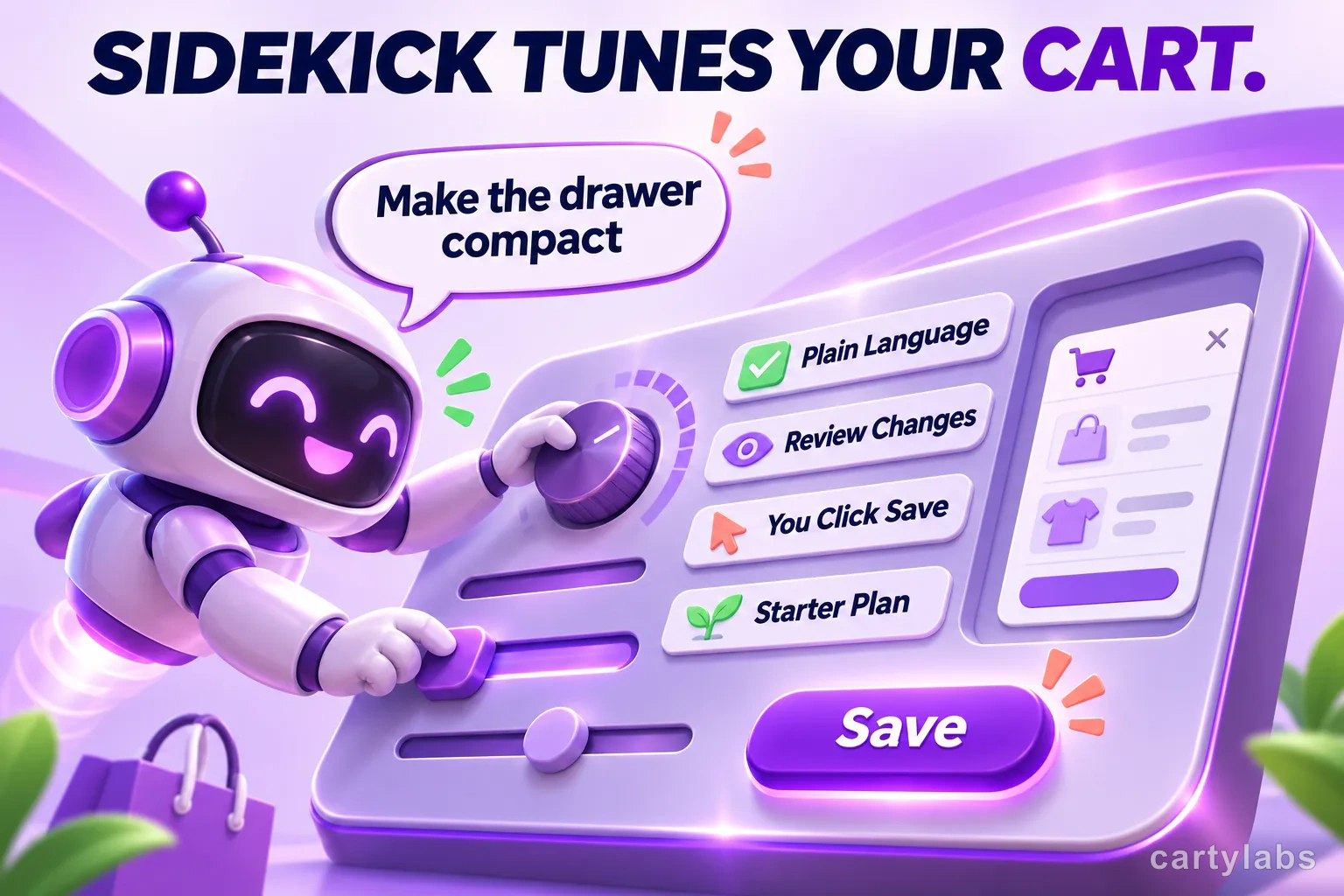
Give your cart drawer the look and feel your shoppers expect. With Shopify Sidekick, you can describe the change you want in plain language and get suggestions for supported Cartylabs settings, from layout and colors to cart messages and recommendations.
Sidekick puts its suggestions into the Cartylabs form so you can review them before anything changes on your storefront. Nothing goes live until you click Save.
Key takeaways
- Sidekick suggests changes to supported Cartylabs settings; it does not publish them.
- Review the form and preview the result before clicking Save.
- Availability depends on Shopify Sidekick and the supported Cartylabs settings page.
- Sidekick does not edit theme code or create discounts or shipping rules.
Get started with Sidekick
Cartylabs Sidekick cart tuning is included with the Starter plan, wherever Shopify Sidekick is available in your Shopify admin. Open a supported Cartylabs settings page and choose Ask Sidekick. The feature is available on settings pages such as the basic cart drawer, shipping estimate, recommendations, product-discount display, and reward settings for a market.
Tell Sidekick what you want shoppers to see. Clear requests lead to useful suggestions:
- “Make the drawer open as a right-side sidebar with a compact layout.”
- “Use a darker text color on a pale background, and keep the current title.”
- “Change the empty-cart message to invite shoppers to browse the coffee collection.”
- “Make the shipping estimate button match the store’s blue accent color.”
- “Show recommendations horizontally, with up to four products.”
- “Make the next reward milestone easier to scan on mobile.”
Tune the details that shape the cart
Sidekick can help with the presentation of your cart: its layout, position, title, colors, button labels, empty-cart message, and footer behavior. On supported settings pages, it can also adjust shipping estimate text and colors, recommendation layout and product count, or how reward milestones appear.
You can ask about desktop or mobile settings. If one version matters most, name it in your request, such as “For mobile, use a compact layout.” Sidekick can also use your store’s theme colors as a reference when you ask it to make the cart fit the rest of the storefront.
For example, instead of asking “make the cart better,” try: “For mobile, use the compact layout, keep the title Cart, use dark text on a white background, and leave the empty-cart button unchanged.” That gives Sidekick a clear direction and makes it easy to check whether the suggested result matches your intent.
Review the suggestion and save
After Sidekick suggests changes, you see them in the Cartylabs form. Check the updated text, colors, and layout, then preview the cart on the device you asked about. If everything looks right, click Save. If not, adjust the settings yourself or discard the suggestion.
This keeps the decision in your hands. Sidekick helps you make the changes faster, while you decide what belongs in the live shopping experience.
A quick review can focus on three things: does the cart still look like your brand, does the text explain the next step clearly, and is the most important action easy to spot? For a coffee store, that might mean keeping a clear checkout button, using a calm background, and making the empty-cart message point shoppers back to products. For a store with a shipping estimate, it might mean making the button easy to read and the estimate title clear. The best version is the one that makes the cart easier to use without crowding it.
What Sidekick will not do
Sidekick does not edit your Shopify theme code or create discounts or shipping rules. It suggests changes on supported Cartylabs settings pages, and nothing goes live until you review the form and click Save.
A practical way to use it
Start with one improvement at a time: make the drawer easier to scan, clarify the empty-cart message, or make a button color match the store. Review the result on desktop and mobile, then move on to another detail if needed. A focused request makes the change easy to evaluate and keeps the cart experience consistent.
Try requests that describe the shopper’s goal and the detail you want to change. For example, “Make the empty-cart message friendlier, but keep it short” sets a clear direction. “Use the store’s teal for the shipping estimate button and keep the text easy to read” gives Sidekick a visual target. You can also ask for a recommendation layout that uses less space, or for the cart title to stay unchanged while the other colors are adjusted.
If the first suggestion is close, refine it in the form before saving. Read the message as a shopper would, check that the button still stands out, and make sure the mobile view has room for the items and checkout action. Small edits are easier to assess than a long list of changes all at once.
Sidekick is a convenient way to refine supported Cartylabs settings without writing code. For a broader look at cart layouts and shopper flow, read the Shopify cart drawer guide. To see which features are included in each plan, visit Cartylabs pricing.
FAQ
Does Shopify Sidekick publish Cartylabs changes automatically?
No. Sidekick places suggestions in the Cartylabs form for you to review. The storefront changes only after you choose Save.
Can Sidekick edit my Shopify theme code?
No. Sidekick adjusts supported Cartylabs settings and does not edit theme code or create discounts and shipping rules.
Which Cartylabs plan includes Sidekick cart tuning?
Starter includes Sidekick cart tuning where available in the Shopify admin. See Cartylabs pricing for the plan comparison.
Next steps
Related Shopify resources
Practical tools and product pages related to this guide.
Keep reading
All articles →
Payment Icons in Your Shopify Cart: Helpful Trust Signal or Clutter?
Shopify cart payment icons show shoppers which payment methods your store accepts. Learn how Cartylabs lets you choose, reorder, and display icons in the drawer.
3 Shopify Cart Discount Types: Bundles, Volume, and Spend Tiers
Shopify cart discounts can reward bundles, product quantities, or cart spend. Learn how Cartylabs shows each offer in the cart and applies eligible savings at checkout.
Shopify Cart Analytics: What Growth Reports Reveal
Shopify cart analytics in Cartylabs range from a Free 30-day summary to Growth conversion, engagement, order reports, shopper journeys, and Excel export.
 Install Cart — Free