
Payment Icons in Your Shopify Cart: Helpful Trust Signal or Clutter?
Shopify cart payment icons show shoppers which payment methods your store accepts. Learn how Cartylabs lets you choose, reorder, and display icons in the drawer.
In this article
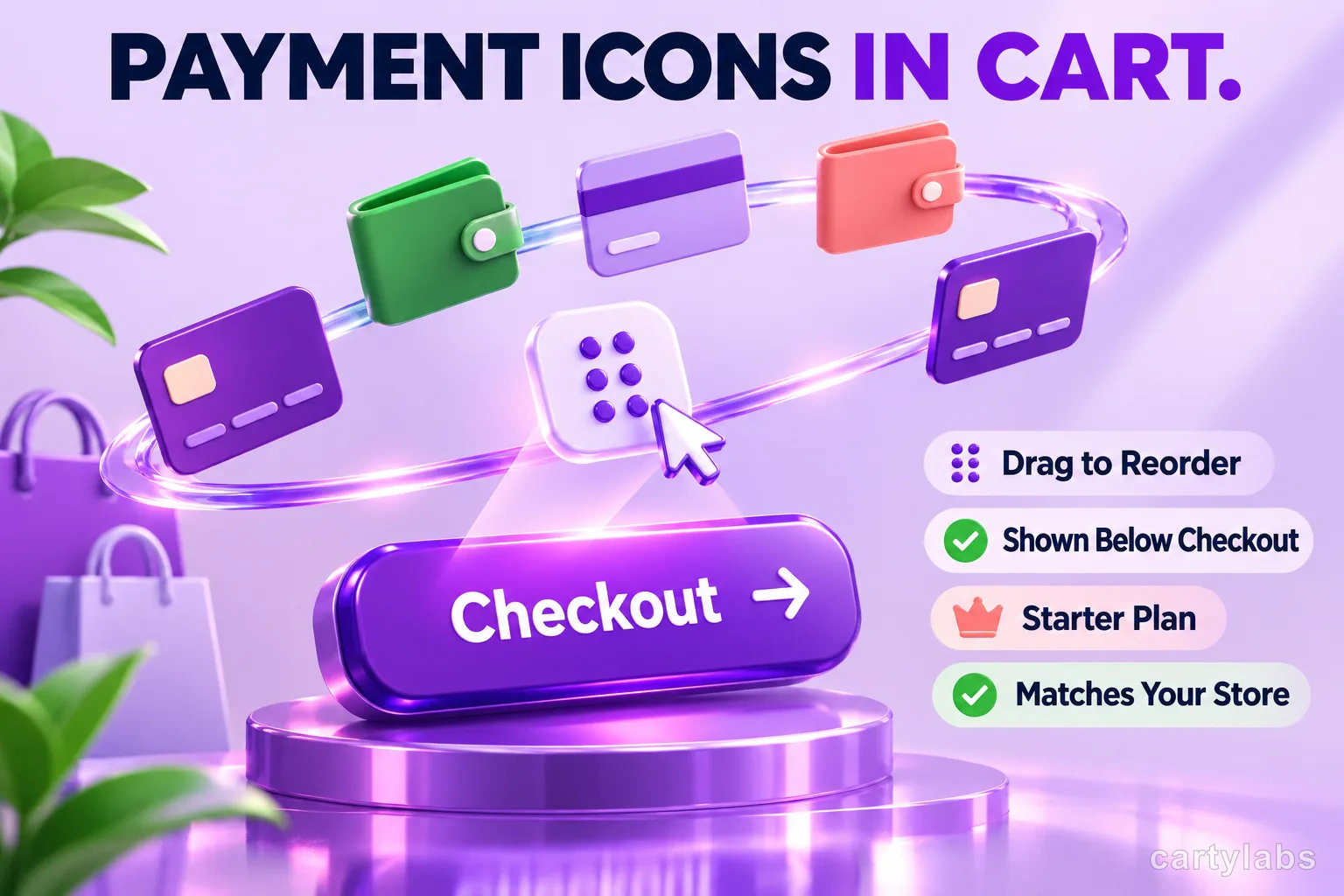
Custom payment icons in a Shopify cart drawer can reassure shoppers about accepted payment methods when the symbols are accurate and easy to scan. Cartylabs includes this display feature on Starter: choose and reorder icons in the cart settings, then show them beneath the checkout button. They communicate payment options, but do not change checkout or enable a payment method.
Key takeaways
- Cartylabs custom payment icons are a Starter feature.
- Choose and reorder the icons with drag and drop.
- Icons display below the checkout button in the cart drawer.
- Keep the selection accurate to the payment methods your checkout actually supports.
What do payment icons do in a Shopify cart?
Payment icons are visual cues about the payment options a shopper can expect. Cartylabs displays selected icons beneath the checkout button, where they can support confidence near the next action. They are informational only: selecting an icon does not configure Shopify Payments, add a gateway, or alter the checkout flow.
For example, a hypothetical store that accepts major card brands and a local wallet can select only the relevant icons. Showing unsupported methods can mislead shoppers, so compare the icon list with the active payment settings in Shopify before publishing.
How do you customize payment icons?
The Cartylabs setting lets merchants search for icons, choose which to show, and drag to reorder them. Use an order that reflects what your customers recognize first. A concise row is easier to scan than a long collection of marks.
Before saving, check the drawer on desktop and mobile. Confirm icons appear under the checkout button, remain legible at the available width, and match the payment methods actually offered at checkout. If your payment options change, revisit the selection.
| Setting | What it controls |
|---|---|
| Icon selection | Which payment marks are displayed |
| Drag-and-drop order | The sequence shoppers see |
| Cart display | Icons appear under the checkout button |
Are payment icons worth adding?
They are useful when shoppers benefit from seeing familiar methods before leaving the cart. They are less useful when the row is crowded, contains methods you do not accept, or competes visually with checkout. Treat them as a supporting detail, not a substitute for clear shipping, return, and checkout information.
Pair a calm icon row with the other parts of a clear Shopify cart drawer and review our guidance on trust badges in the cart. Trust elements work best when they answer a real shopper question instead of adding decoration.
Which plan includes custom payment icons?
Custom payment icons are included with Cartylabs Starter, alongside the cart drawer, quick buy, announcement banner, free shipping bar, trust badges, and other cart controls. See Cartylabs pricing for plan details and the cart drawer feature for the product overview.
FAQ
Do payment icons change the payment methods at checkout?
No. They are display elements in the cart drawer and do not configure payment providers. Your Shopify checkout settings determine which methods are available.
Where do the icons appear?
They appear beneath the checkout button in the Cartylabs cart drawer. Check the storefront preview to confirm how the row fits your theme and screen size.
Can I change the order of payment icons?
Yes. The setting supports drag-and-drop reordering, so you can put the most relevant accepted methods first.
What plan includes custom payment icons?
Cartylabs Starter includes custom payment icons. See the pricing page for current plan details.
Next steps
Related Shopify resources
Practical tools and product pages related to this guide.
Keep reading
All articles →
Shopify Sidekick Can Tune Your Cart Drawer, But It Won't Publish for You
Shopify Sidekick can suggest changes to supported Cartylabs cart settings, but you review and save them. See what it can tune and where it stops.
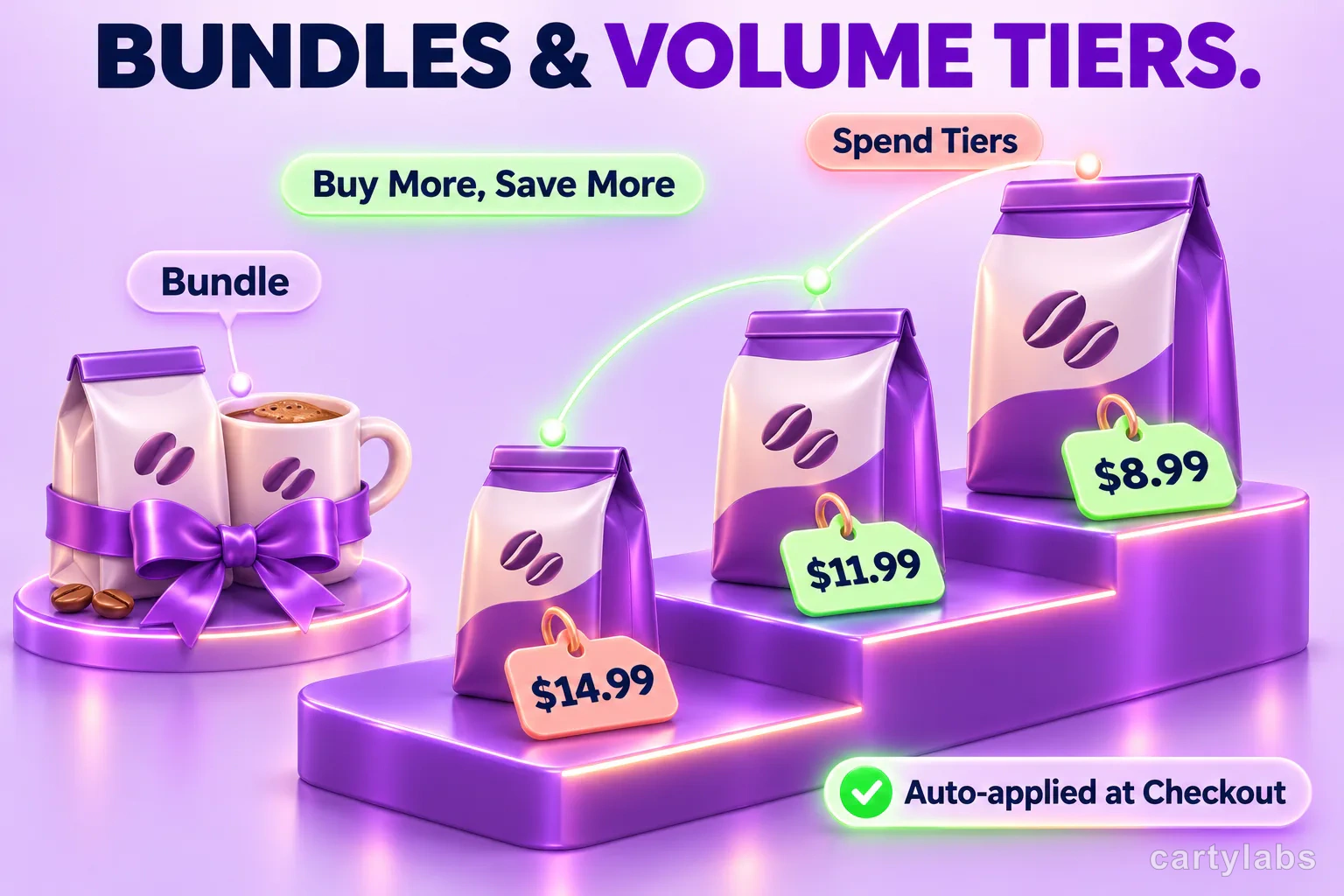
3 Shopify Cart Discount Types: Bundles, Volume, and Spend Tiers
Shopify cart discounts can reward bundles, product quantities, or cart spend. Learn how Cartylabs shows each offer in the cart and applies eligible savings at checkout.
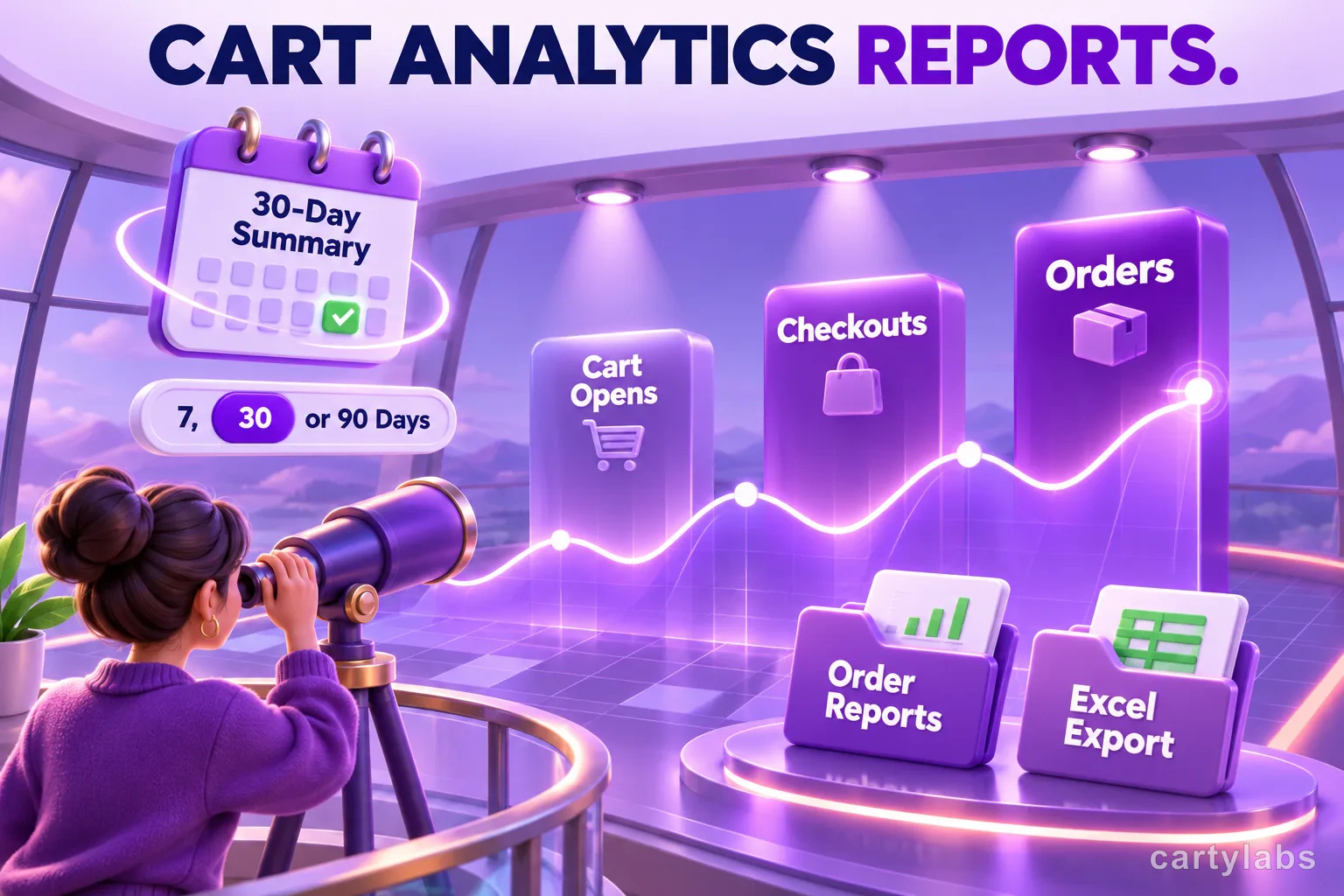
Shopify Cart Analytics: What Growth Reports Reveal
Shopify cart analytics in Cartylabs range from a Free 30-day summary to Growth conversion, engagement, order reports, shopper journeys, and Excel export.
 Install Cart — Free